How to Use Zoom on a Low-End PC: Best Settings for Lag-Free Calls


Asif Mohammad Sovon
Asif Mohammad Sovon, IT Assistant at Bangladesh Air Force and Fileion tech writer, simplifies tech t...
Your meeting starts in two minutes. You open Zoom. The video freezes. The audio cuts out. Your screen turns into a slideshow.
Sound familiar?
Millions of people run Zoom on older or budget laptops every day. And most of them struggle with the same problem: lag, stuttering video, and dropped audio. The good news is that Zoom gives you more control over performance than most people realize.
You do not need a new computer to have smooth calls. You just need the right settings.
In this guide, you will learn exactly how to configure Zoom for low-end PCs, which features drain your system resources, and how to get lag-free calls without spending a single dollar on hardware.
Let's dive into the basics before moving to the hands-on steps.
What is Zoom?
Zoom is a video conferencing platform used by students, remote workers, teachers, and businesses worldwide. It lets you host or join audio and video meetings, share your screen, collaborate on documents, and chat in real time.
The challenge is that Zoom's default settings are built for modern, high-performance computers. On a low-end PC with limited RAM or an older processor, those default settings push your hardware too hard. The result is lag, overheating, and choppy performance.
When you tune Zoom's settings manually, you reduce the load on your CPU and RAM. That means smoother calls even on a basic machine.
Key Features
-
Virtual backgrounds and video filters look great, but eat up processing power. Turning them off frees up CPU resources instantly.
-
Zoom can use your GPU to handle video processing. On some older PCs, this actually slows things down. The setting is adjustable.
-
You can choose between optimizing screen share for motion or sharpness. Choosing the right mode reduces frame drops during presentations.
Step-by-Step Guide: How to Use Zoom on a Low-End PC
-
Download and install Zoom from Fileion. Always use the latest stable version. Newer versions often carry performance patches that help older systems run more smoothly.
-
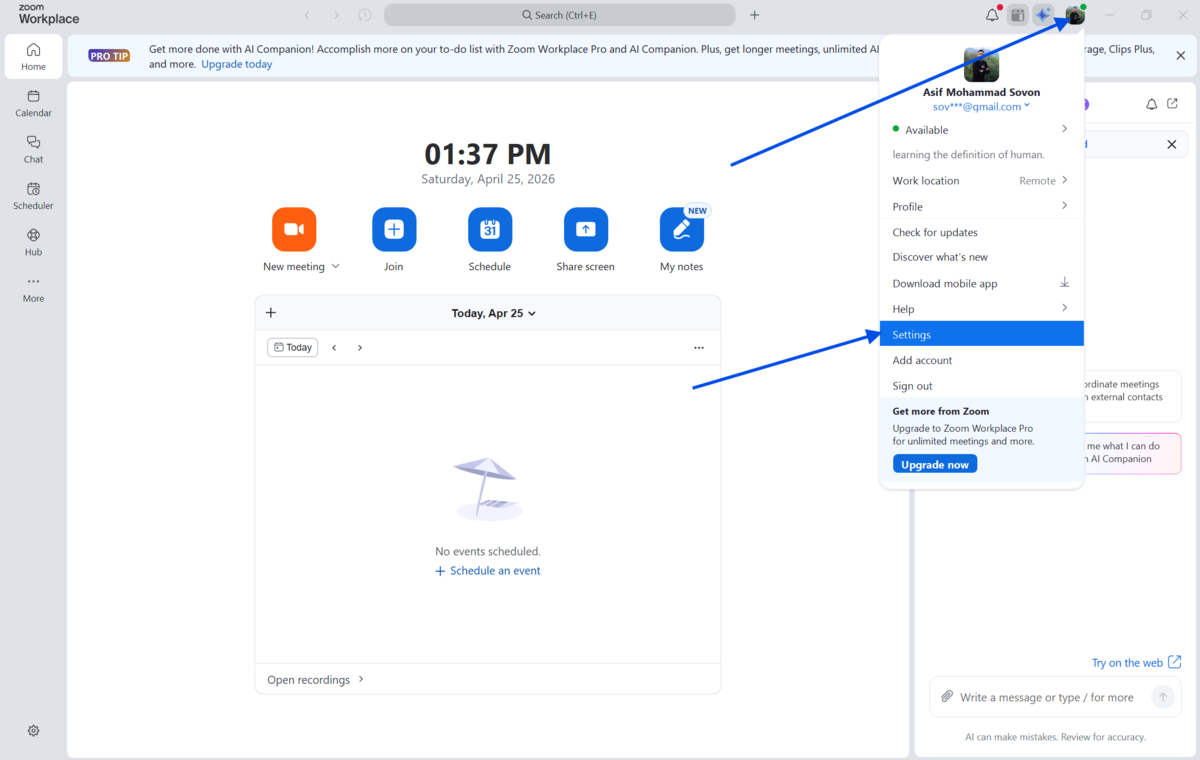
Click your profile picture in the top-right corner, then select "Settings" from the dropdown menu.
-
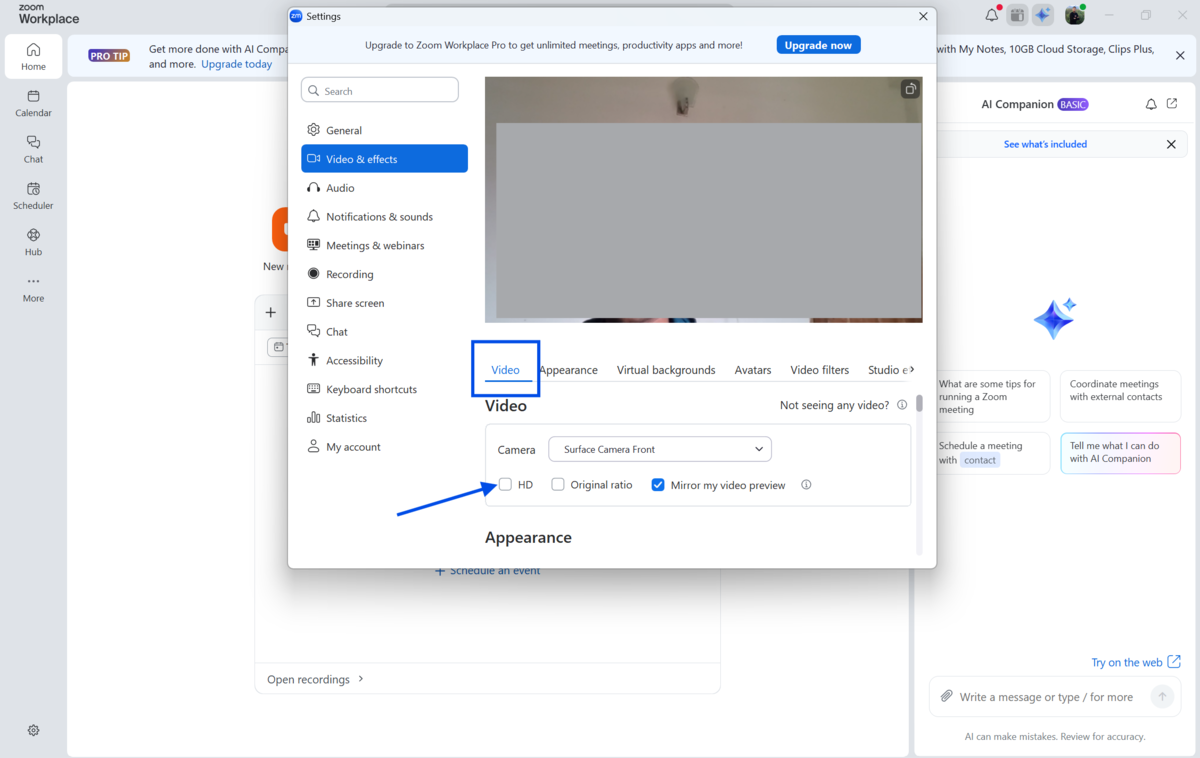
Go to the Video tab. Find the option labeled "HD" and make sure it is unchecked. HD video requires significantly more processing power. Standard definition is enough for most calls.
-
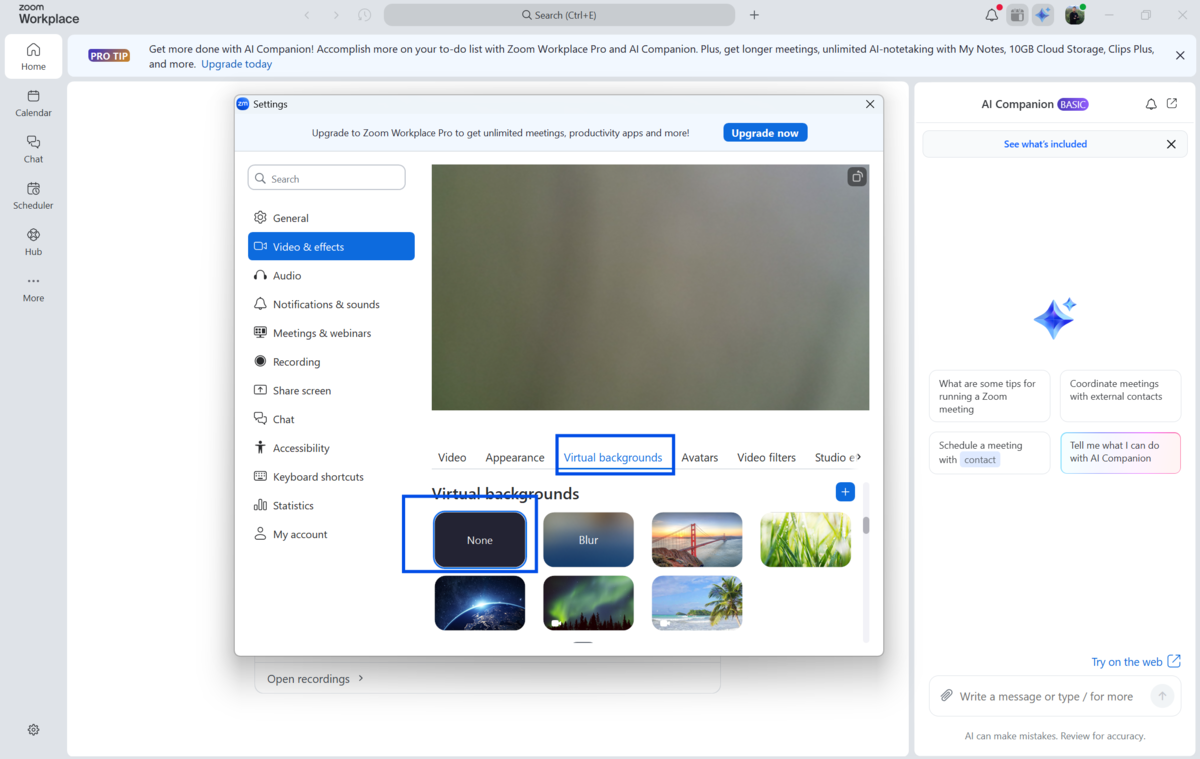
Disable virtual backgrounds. In the same Video tab, scroll to "Virtual Background" and select "None."
-
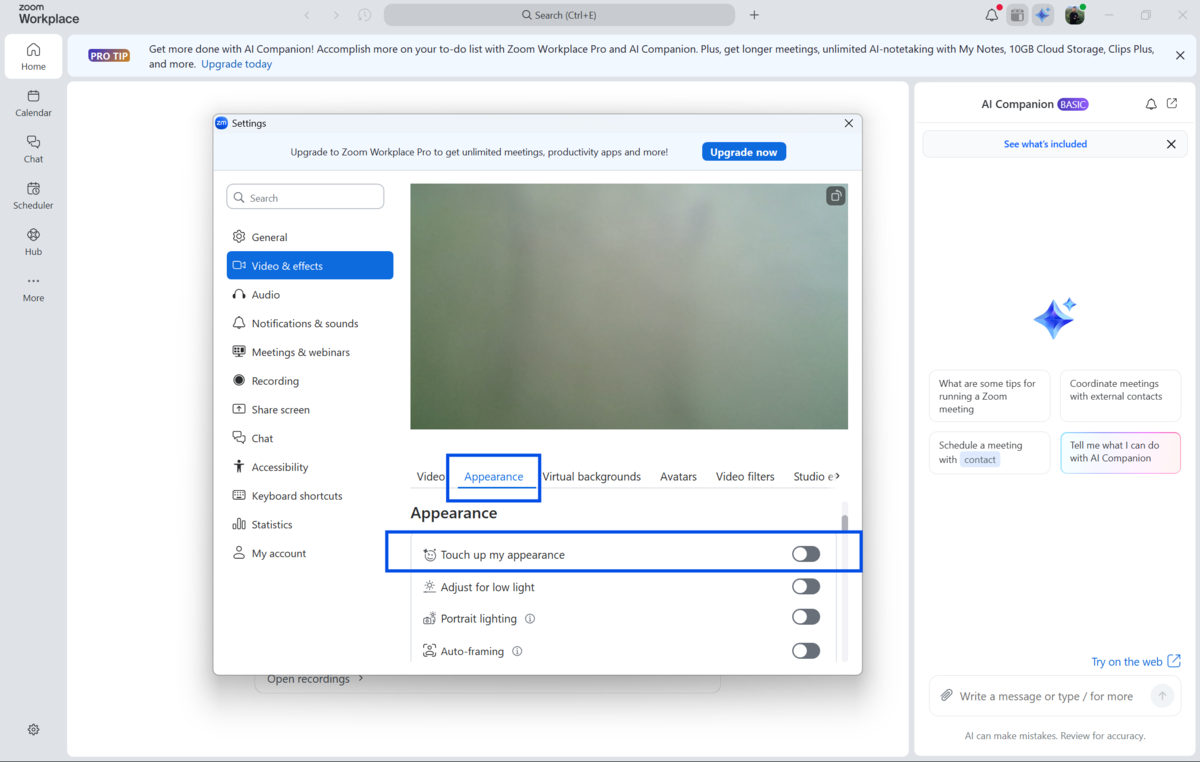
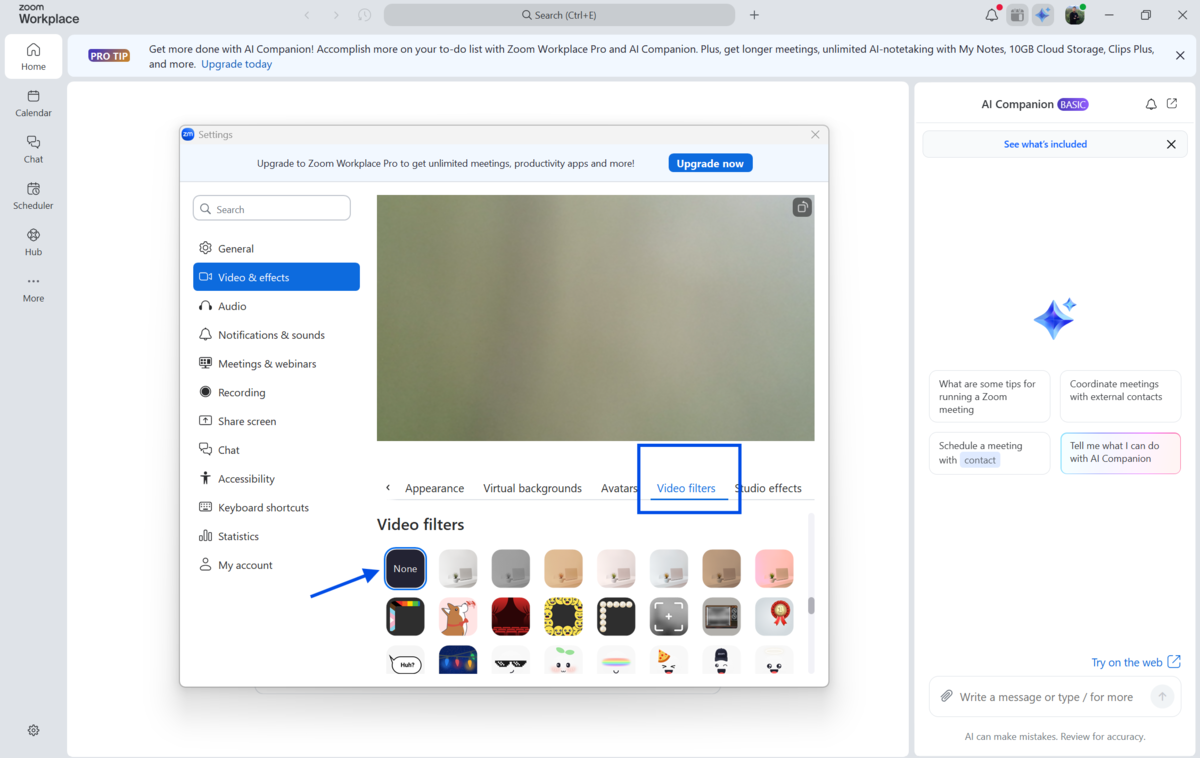
Uncheck "Touch up my appearance" and disable any video filters. These are cosmetic features that quietly burn through CPU cycles.
-
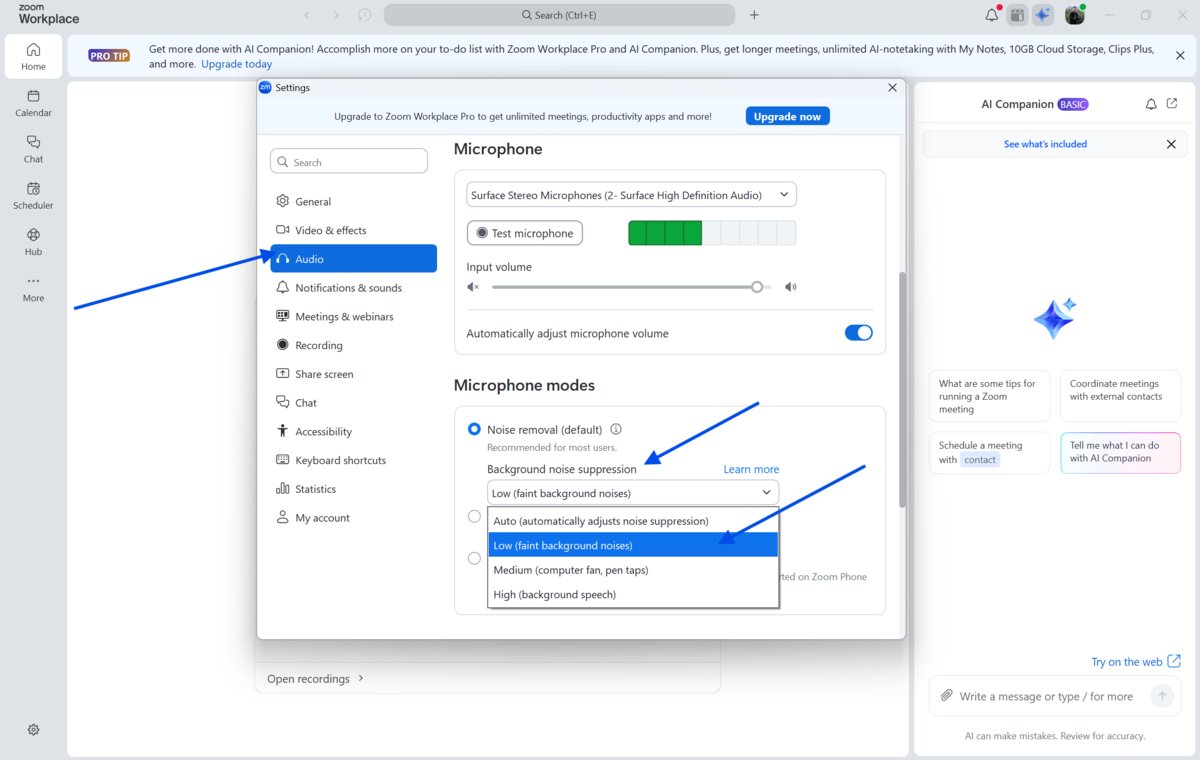
Click on the Audio tab. Enable "Suppress background noise" and set it to "Low." Higher noise suppression settings use more processing power, so keep it at the lowest level that still works for your environment.
-
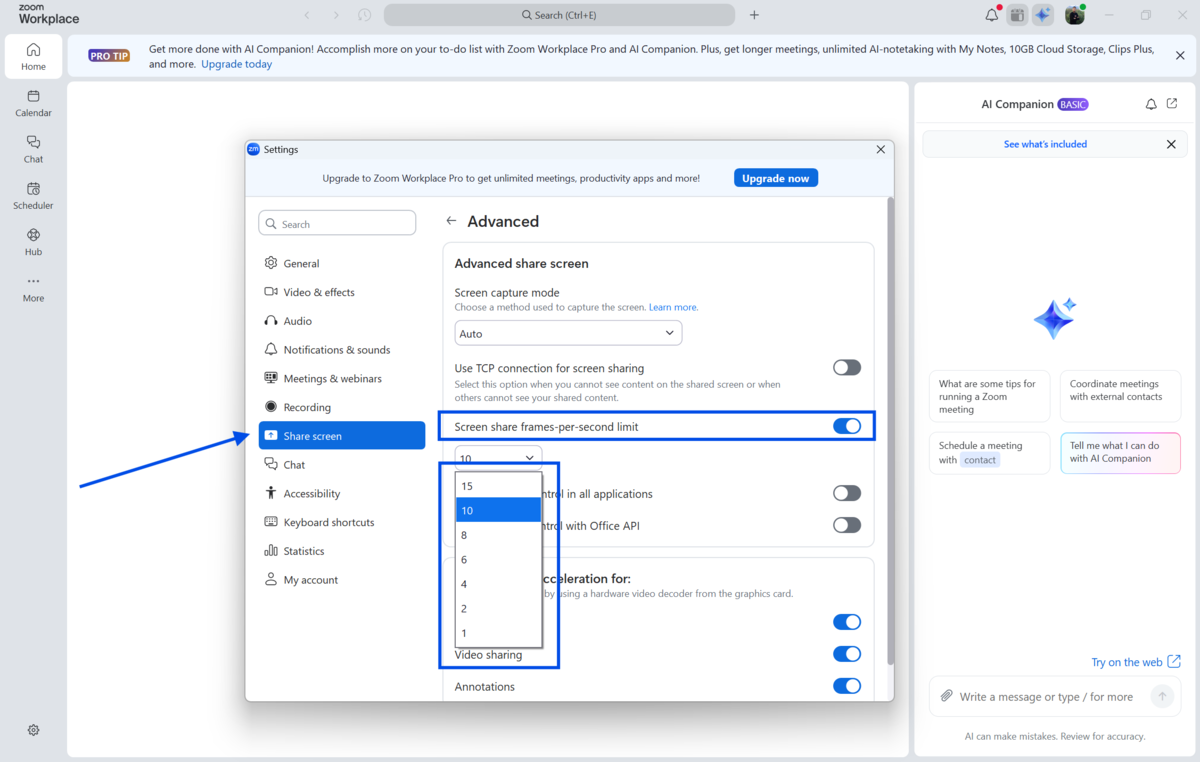
Go to Share Screen settings. Under "Screen Share," set the frame rate to low. Lowering frame rates during screen sharing reduces CPU load and helps keep the call stable.
-
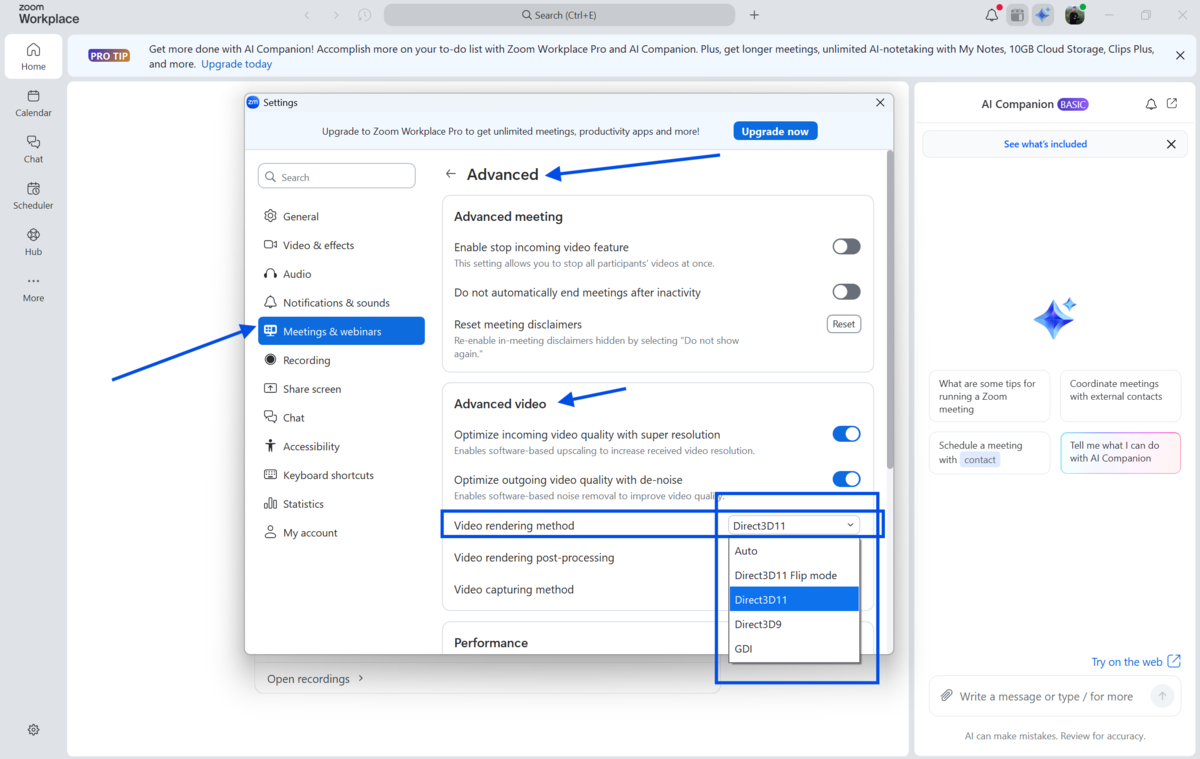
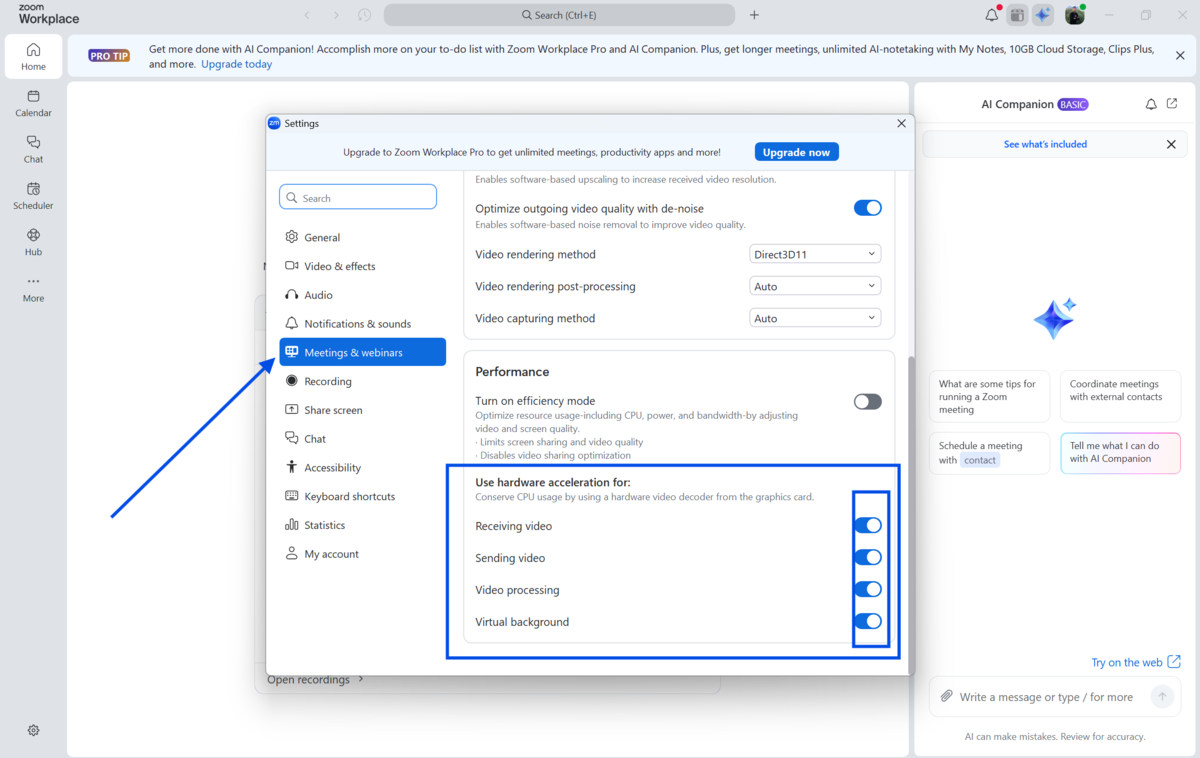
Navigate to the Advanced settings tab. Look for "Video Rendering Method" and change it from "Auto" to "Direct3D11" if you are on Windows. This uses your GPU more efficiently on older hardware.
-
Disable hardware acceleration if your PC is very old. In the same Advanced tab, uncheck "Enable hardware acceleration for receiving video" if you notice the setting makes things worse. Test both options to find what works best for your machine.
-
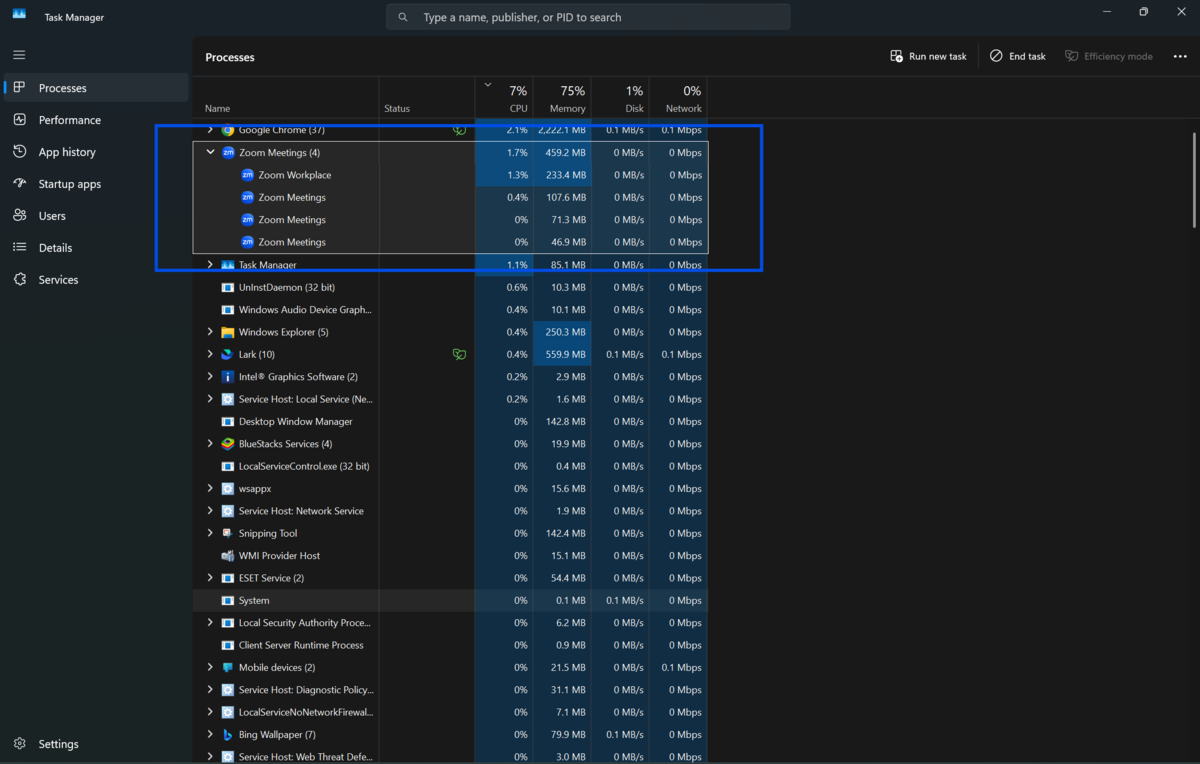
Close background applications before your call. Open Task Manager, check which programs are using the most CPU and RAM, and close anything you do not need.
-
Use a wired internet connection when possible. Wi-Fi introduces packet loss and latency. A direct Ethernet connection gives Zoom more stable bandwidth to work with and reduces audio drops.
-
Set Zoom's process priority to High. Open Task Manager during your call, find Zoom.exe under the Processes tab, right-click it, select "Go to details," then right-click again and choose "Set priority" and select "High." This tells Windows to allocate more CPU time to Zoom over other background tasks.
Quick Tips
-
Restart your PC before important calls to clear RAM.
-
Use Zoom's web browser version as a backup. It is lighter than the desktop app on very old systems.
-
Lower your display resolution temporarily before a call to reduce GPU load.
-
If your call keeps dropping, reduce your outgoing video quality to 360p from within the Video settings.
Common Mistakes to Avoid
-
A browser with ten open tabs can consume more RAM than Zoom itself. Always check the Task Manager before a call.
-
Running an older version means missing performance improvements. Zoom regularly releases optimizations for lower-end hardware in its update patches.
Pricing and Availability
Zoom is free for personal use with a 40-minute limit on group meetings. The free plan supports unlimited one-on-one calls with no time restriction.
Zoom's paid tiers start at approximately $14.16 per month per user, billed annually for the Pro plan, which removes the group meeting time limit and adds additional features. There is a Business Plan that comes with
$15.58 per user per month, billed annually. You can get an Enterprise Plan by contacting the sales team.
The desktop application is available for Windows, macOS, and Linux. All the performance settings covered in this guide are available in the free version. You do not need a paid plan to apply for them.
Final Verdict
Zoom works on low-end PCs. You just have to tell it how.
The default settings are designed for machines with modern specs. If your PC is older or budget-level, those defaults will hurt your performance. But with the right adjustments, including disabling HD video, removing backgrounds, tuning audio suppression, and managing your background processes, Zoom runs cleanly even on modest hardware.
This guide gives you a practical, no-cost way to improve your call quality today.
Download Zoom from our site, apply these settings as soon as it opens, and experience the difference on your very first call.
FAQs
Can Zoom run on a PC with 4GB of RAM?
Yes. Zoom can run on a PC with 4GB of RAM. For the best experience, close other applications before your call to free up available memory. Apply the performance settings in this guide to keep resource usage low.
Why does Zoom lag even with a good internet connection?
Lag is not always caused by internet speed. On a low-end PC, the bottleneck is usually CPU or RAM. Zoom processes video encoding, audio, and the interface simultaneously. Reducing video quality and closing background apps will often fix lag that has nothing to do with your connection.
Does disabling HD video make Zoom calls look bad?
Not significantly. Standard definition video at 360p or 480p is clear enough for most meetings. The visual difference between HD and standard is minimal in a small video window. The performance gain is far more noticeable than the visual trade-off.
Should I use Zoom in a browser instead of the desktop app on a slow PC?
Sometimes, yes. The browser version of Zoom is lighter and skips some background processes that the desktop app runs. If your PC struggles even with the settings applied, try joining via Chrome or Firefox as a temporary fix.
Does updating Zoom help with performance on old computers?
Yes. Zoom regularly releases updates that fix memory usage issues and improve efficiency. Older versions sometimes carry bugs that consume more resources than necessary. Keeping Zoom updated is a simple, free way to maintain the best possible performance on any hardware.
Comments
Let us know about your thoughts
Explore more articles related to Zoom Meetings
Here you will find all the latest tips and tricks about Zoom Meetings. Also you will get many solution of problems which you may face while using this app.
Published at: Apr 25, 2026
How to Use Zoom on a Low-End PC: Best Settings for Lag-Free Calls
Your meeting starts in two minutes. You open Zoom. The video freezes. The audio cuts out....


Meeting made efficient, collaboration made easy
Host virtual meetings like a pro with Zoom. With high-quality video and audio, breakout rooms, screen sharing, and cross-platform support, Zoom keeps work, learning, and personal calls smooth, interactive, and productive for everyone.