How to Fix Zoom Not Opening on Windows 11: A Step-by-Step Guide


Asif Mohammad Sovon
Asif Mohammad Sovon, IT Assistant at Bangladesh Air Force and Fileion tech writer, simplifies tech t...
You open Zoom. Nothing happens. You click again. Still nothing. Your meeting starts in five minutes, and your screen just stares back at you.
This is one of the most frustrating things that can happen on a workday. Zoom is essential for remote work, online classes, and virtual meetings. When it stops responding on Windows 11, everything stalls.
The good news is that this problem is almost always fixable. You do not need to be a tech expert. Most solutions take less than two minutes.
In this guide, you will learn exactly why Zoom stops opening on Windows 11 and how to fix it with clear, proven steps.
Let's dive into the basics before moving to the hands-on steps.
What is Zoom?
Zoom is a cloud-based video conferencing platform. It lets users host and join video calls, webinars, screen shares, and virtual meetings from any device.
Students use it for online classes. Remote teams use it for daily standups. Healthcare providers use it for virtual consultations. Businesses use it for client calls and company-wide meetings.
When Zoom works, it is seamless. When it does not open, it can disrupt your entire schedule. That is why fixing it quickly matters. Key Features include Video and Audio Conferencing, Screen Sharing and Collaboration, Meeting Recording, and Transcripts
Step-by-Step Guide: How to Fix Zoom Not Opening on Windows 11
-
Restart your computer first: This sounds simple, but it clears temporary system errors that block apps from launching. Save your work and do a full restart before anything else.
-
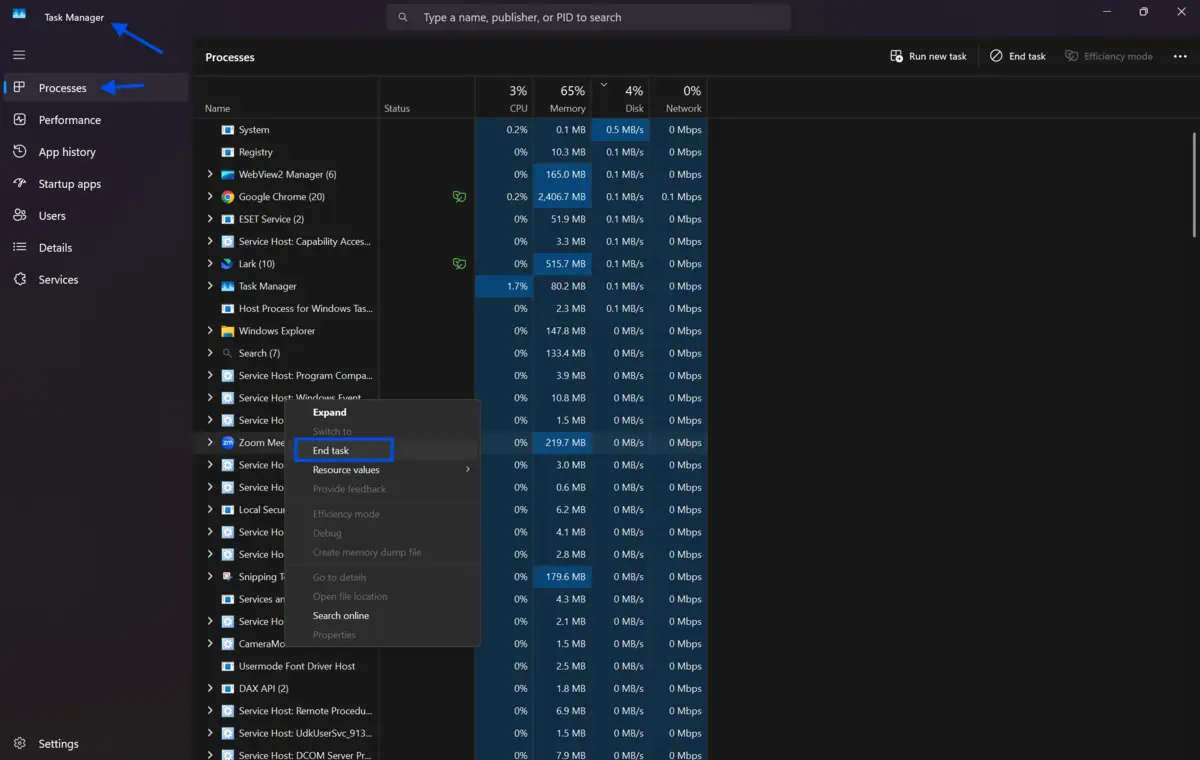
Check if Zoom is already running in the background: Press Ctrl + Shift + Esc to open Task Manager. Look for any Zoom process under the Processes tab. If you find one, right-click it and select End Task. Then try opening Zoom again.
-
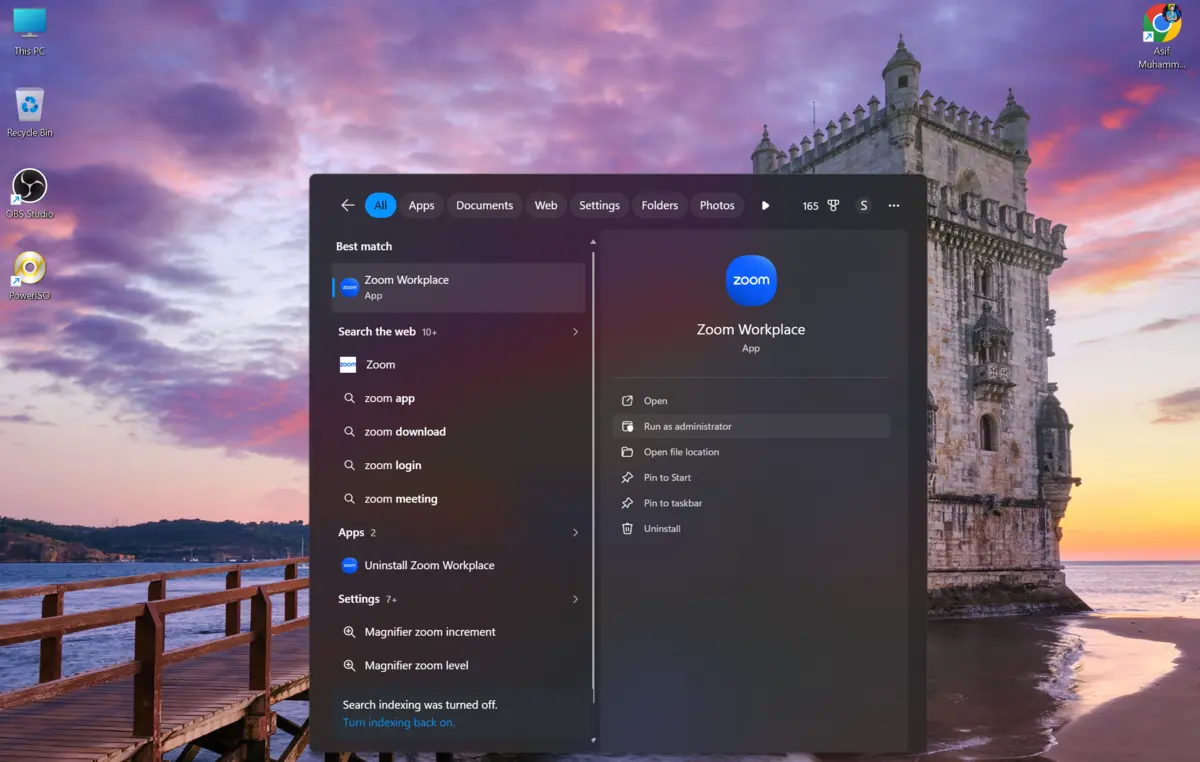
Run Zoom as an administrator: Right-click the Zoom icon on your desktop or Start menu. Select "Run as administrator." This gives Zoom the permissions it needs to launch properly on Windows 11.
-
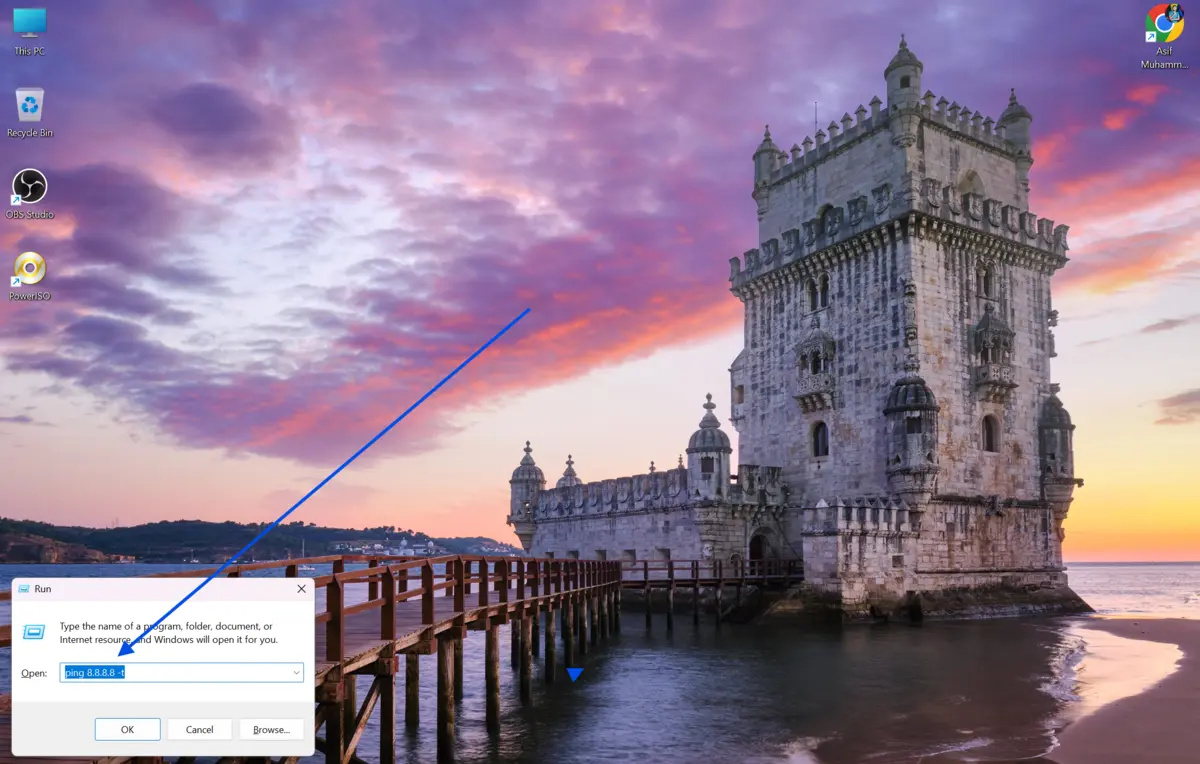
Check your internet connection: Zoom requires an active internet connection to open and authenticate your account. Test your connection by opening a browser and loading any website. If the internet is down, fix that first.
-
Update Zoom to the latest version: An outdated Zoom version often causes launch failures on Windows 11. Visit Fileion, download the latest installer, and run it. The update will replace the older version automatically.
-
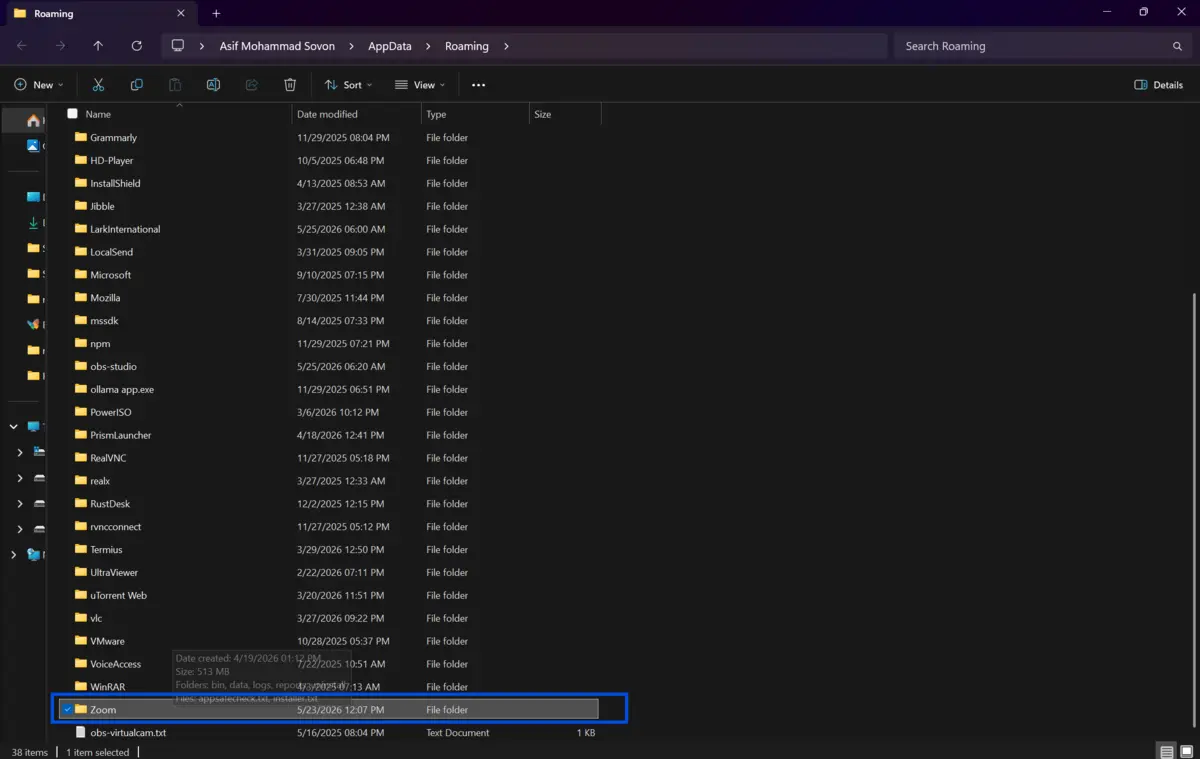
Clear the Zoom app cache: Press Windows + R, type %appdata%\Zoom, and press Enter. Delete the folder named "data" inside. This removes corrupted cache files that prevent Zoom from starting.
-
Disable conflicting antivirus or firewall software temporarily: Some security programs block Zoom from launching. Temporarily disable your antivirus or firewall, then try opening Zoom. If it works, add Zoom as an exception to your security software settings.
-
Update your Windows 11 system: Go to Settings, then Windows Update, and check for pending updates. An outdated Windows build can create compatibility issues with apps like Zoom. Install any available updates and restart.
-
Reinstall Zoom completely. Go to Settings, then Apps, then Installed Apps. Find Zoom, click the three dots next to it, and select Uninstall. After uninstalling, download a fresh copy from our website and install it again.
-
Check for corrupted system files: Open the Start menu and search for Command Prompt. Right-click it and choose "Run as administrator." Type sfc /scannow and press Enter. Windows will scan and repair any corrupted files that may be affecting Zoom.
-
Reset the Zoom app through Windows settings: Go to Settings, then Apps, then Installed Apps. Find Zoom, click on it, and select Advanced Options. Scroll down and click Reset. This restores the app to its default state without uninstalling it.
-
Contact Zoom support if nothing works: Visit support.zoom.us and describe your issue. Include your Windows 11 version, Zoom version, and the steps you already tried. Their support team can help with account-specific or system-level problems.
Quick Tips
-
Always keep Zoom set to auto-update, so you never fall behind on versions.
-
If Zoom opens but freezes, try lowering your video resolution in settings.
-
Use the Zoom web client at app.zoom.us as a backup when the desktop app fails.
-
If you share a device, check if another user profile is blocking the Zoom installation.
Common Mistakes to Avoid
-
Zoom sometimes gets stuck as an invisible background process. If you open it without ending that process first, it simply will not respond. Always check Task Manager first.
-
Running a new installer over a broken installation often fails. Go through the Apps settings to fully remove Zoom before installing a fresh copy.
-
Windows 11 updates often include compatibility patches for popular apps. Running an outdated build is a common but overlooked reason why Zoom stops working.
Pricing & Availability
Zoom is free for personal use with a 40-minute limit on group meetings. The free plan supports unlimited one-on-one calls with no time restriction.
Zoom's paid tiers start at approximately $14.16 per month per user, billed annually for the Pro plan, which removes the group meeting time limit and adds additional features. There is a Business Plan that comes with
$15.58 per user per month, billed annually. You can get an Enterprise Plan by contacting the sales team.
The desktop application is available for Windows, macOS, and Linux. All the performance settings covered in this guide are available in the free version. You do not need a paid plan to apply for them.
Final Verdict
Zoom not opening on Windows 11 is a common problem with clear solutions. Whether the cause is a corrupted cache, an outdated app, or a background process conflict, you can fix it without technical experience.
Work through the steps in this guide from top to bottom. Most users solve the issue before reaching step five. The ones who do not usually find the fix with a clean reinstall or a system file repair.
If you want a stable, properly installed version of Zoom on your Windows 11 device, download it directly from Fileion. We provide the latest verified version so you can skip searching and get back to your meetings without delay.
FAQs
Why is Zoom not opening on Windows 11?
Zoom may not open due to corrupted cache files, outdated software, a stuck background process, antivirus interference, or missing Windows updates. Working through a structured troubleshooting process usually resolves the issue quickly.
How do I force Zoom to close if it is frozen?
Press Ctrl + Shift + Esc to open Task Manager. Find the Zoom process under the Processes tab, right-click it, and select End Task. You can then reopen the app cleanly.
Will reinstalling Zoom delete my settings?
Reinstalling Zoom removes your local app data but does not delete your account, contacts, or meeting history. Those are stored on Zoom's servers and will sync back when you log in after reinstalling.
How do I clear Zoom cache on Windows 11?
Press Windows + R, type %appdata%\Zoom in the Run box, and press Enter. Open the folder and delete the subfolder named "data." This removes the cache without affecting your Zoom account or settings.
Is Zoom free to use on Windows 11?
Yes. The basic Zoom client is free to download and use. The free plan supports unlimited one-on-one meetings and group meetings up to 40 minutes. Paid plans unlock longer meetings, cloud recording, and additional admin features.
Comments
Let us know about your thoughts
Explore more articles related to Zoom Meetings
Here you will find all the latest tips and tricks about Zoom Meetings. Also you will get many solution of problems which you may face while using this app.

Published at: Apr 25, 2026
How to Use Zoom on a Low-End PC: Best Settings for Lag-Free Calls
Your meeting starts in two minutes. You open Zoom. The video freezes. The audio cuts out....


Meeting made efficient, collaboration made easy
Host virtual meetings like a pro with Zoom. With high-quality video and audio, breakout rooms, screen sharing, and cross-platform support, Zoom keeps work, learning, and personal calls smooth, interactive, and productive for everyone.