How to Record a Zoom Meeting as a Participant – Complete Guide


Asif Mohammad Sovon
Asif Mohammad Sovon, IT Assistant at Bangladesh Air Force and Fileion tech writer, simplifies tech t...
What is Participant Recording in Zoom?
Step-by-Step Guide: How to Record a Zoom Meeting as a Participant
Can a Zoom host detect if a participant is recording?
Is it legal to record a Zoom meeting without permission?
What is the best screen recorder for Zoom meetings?
You joined a Zoom meeting. The host is sharing the necessary information. You know you will forget half of it by tomorrow. But the host never permitted you to record. Sounds familiar?
This is one of the most common frustrations Zoom users face. Whether you are a student missing lecture notes, a remote worker catching project details, or a freelancer reviewing client calls, the need to record is real.
The good news? You do not need the host to hand you permission. There are reliable, practical ways to record a Zoom meeting as a participant on your own terms.
In this guide, you will learn exactly how to do it, which tools work best, and how to avoid common mistakes.
Let's dive into the basics before moving to the hands-on steps.
What is Participant Recording in Zoom?
Participant recording refers to the ability of a non-host attendee to capture a Zoom meeting on their device. By default, Zoom restricts local recording to the host only. Participants must be granted permission before they can use Zoom's built-in recorder.
However, third-party screen recording software operates independently of Zoom's permission system. It runs at the system level, capturing whatever appears on your screen and whatever audio plays through your device. Key features include system-level screen capture, audio recording from multiple sources, scheduled and automatic recording, output format options, and annotation Editing Tools.
Step-by-Step Guide: How to Record a Zoom Meeting as a Participant
-
Choose a reliable third-party screen recorder. Tools like OBS Studio work well for this purpose. Download the software from Fileion before your meeting begins.
-
Install the software and complete the initial setup. Most tools walk you through a short configuration wizard. Follow the prompts and allow any system permissions the software requests.
-
Open the screen recorder before joining your Zoom meeting. Launching it in advance gives you time to configure settings without rushing.
-
Select your recording area. You can choose the full screen, a specific window, or a custom region. For Zoom, full screen or the Zoom window itself works best.
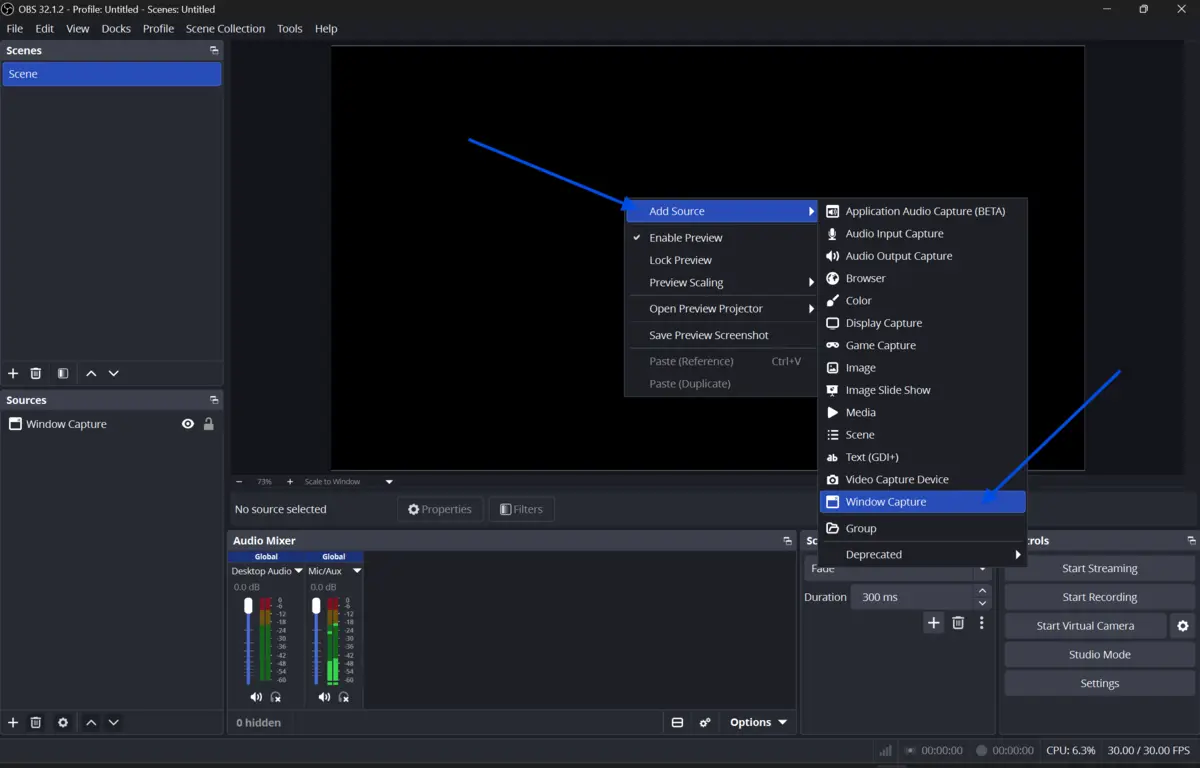
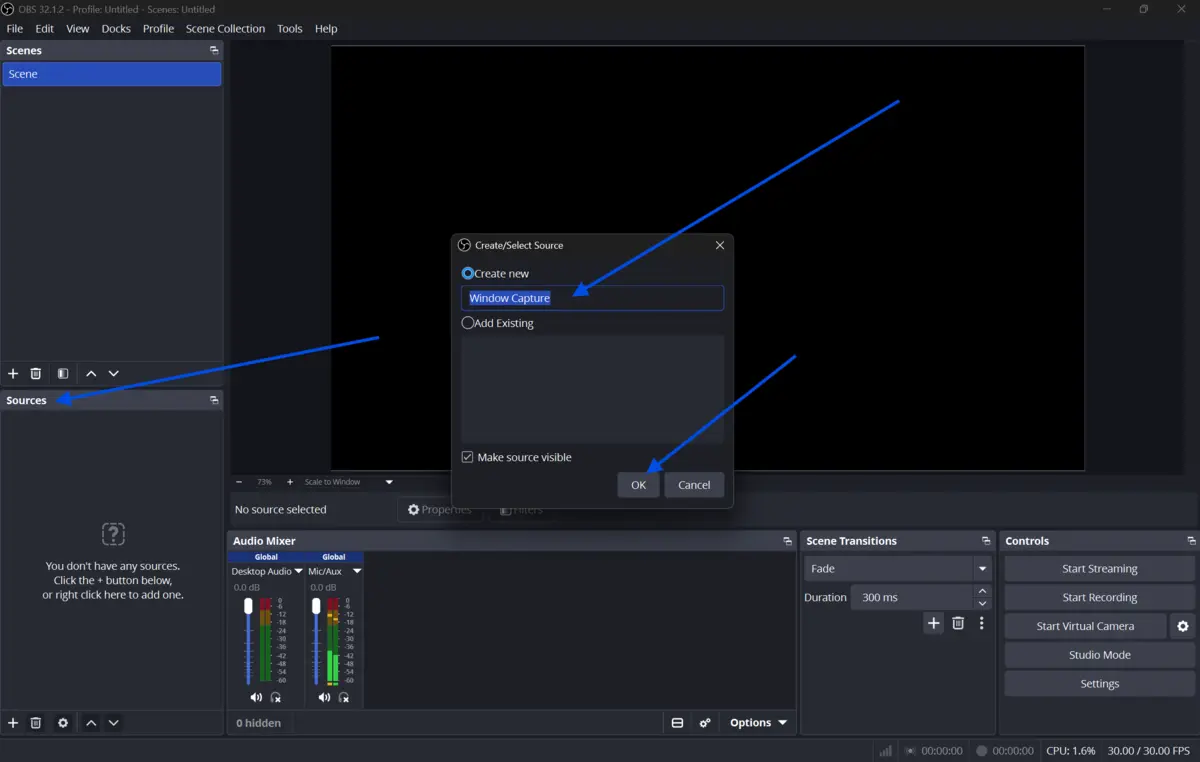
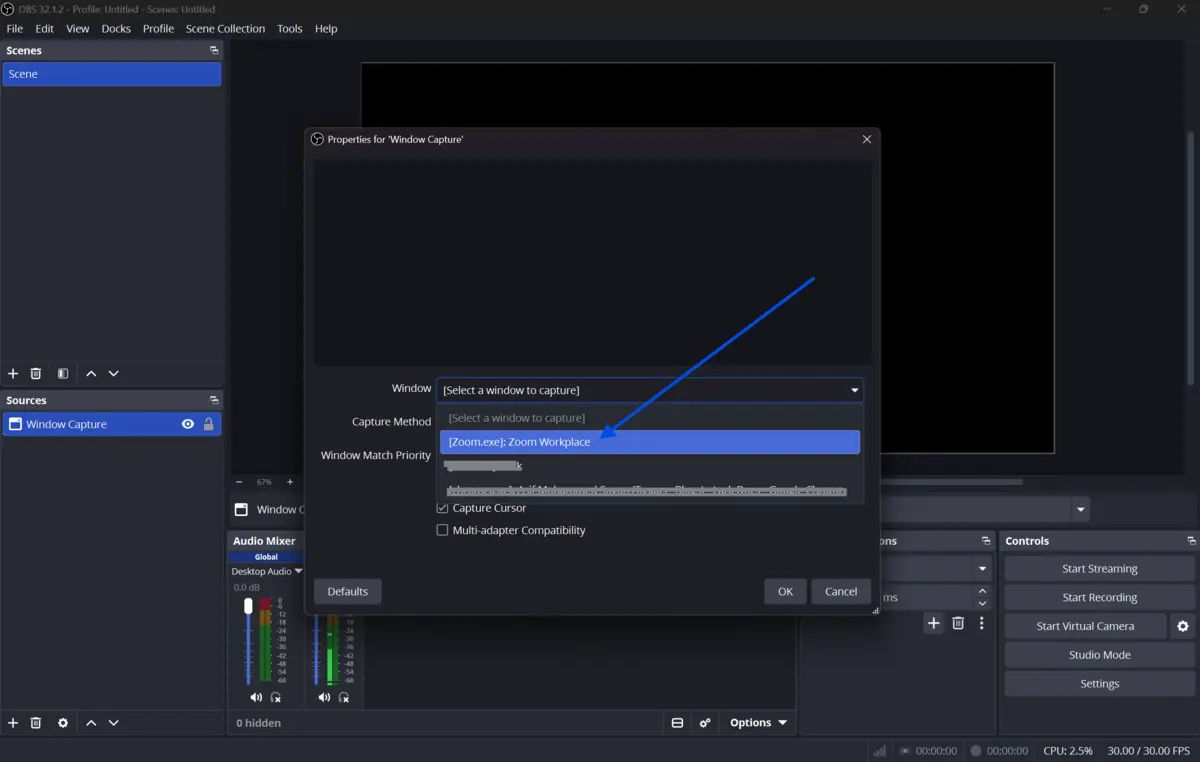
-
Configure your audio settings. Enable system audio to capture the meeting sound. Enable your microphone if you want your own voice recorded too. Test both inputs using the preview feature.
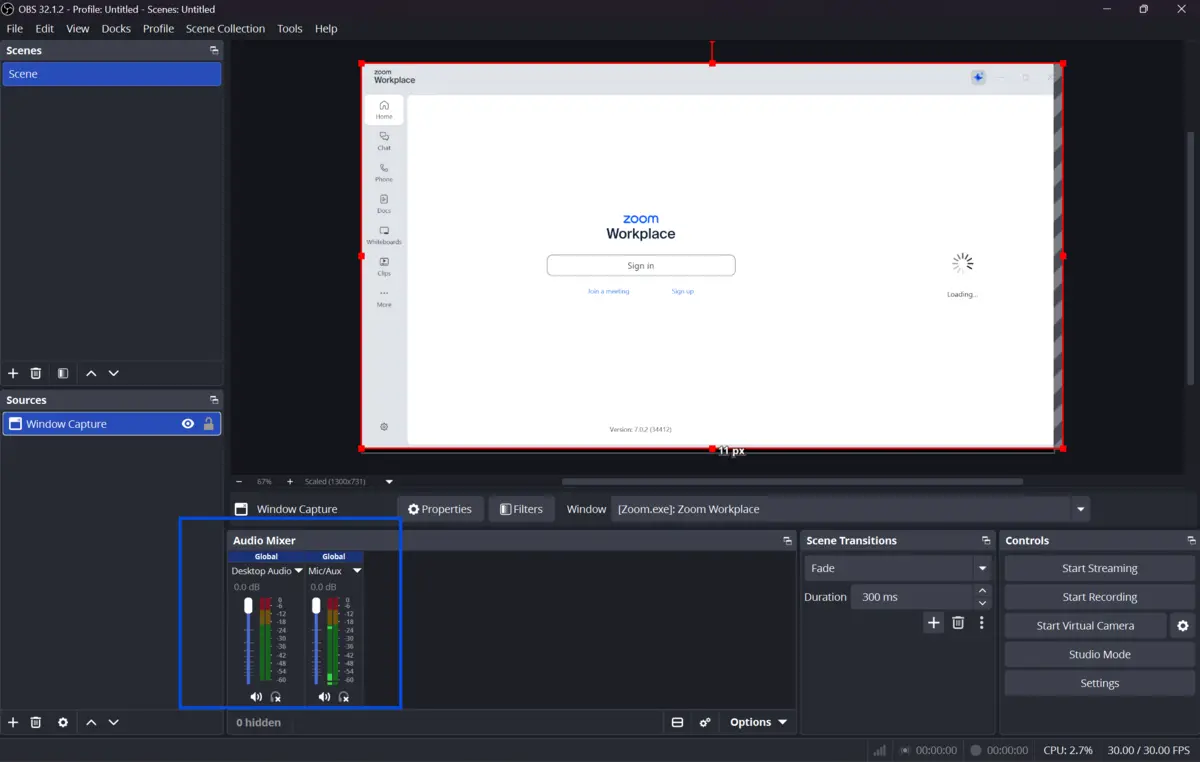
-
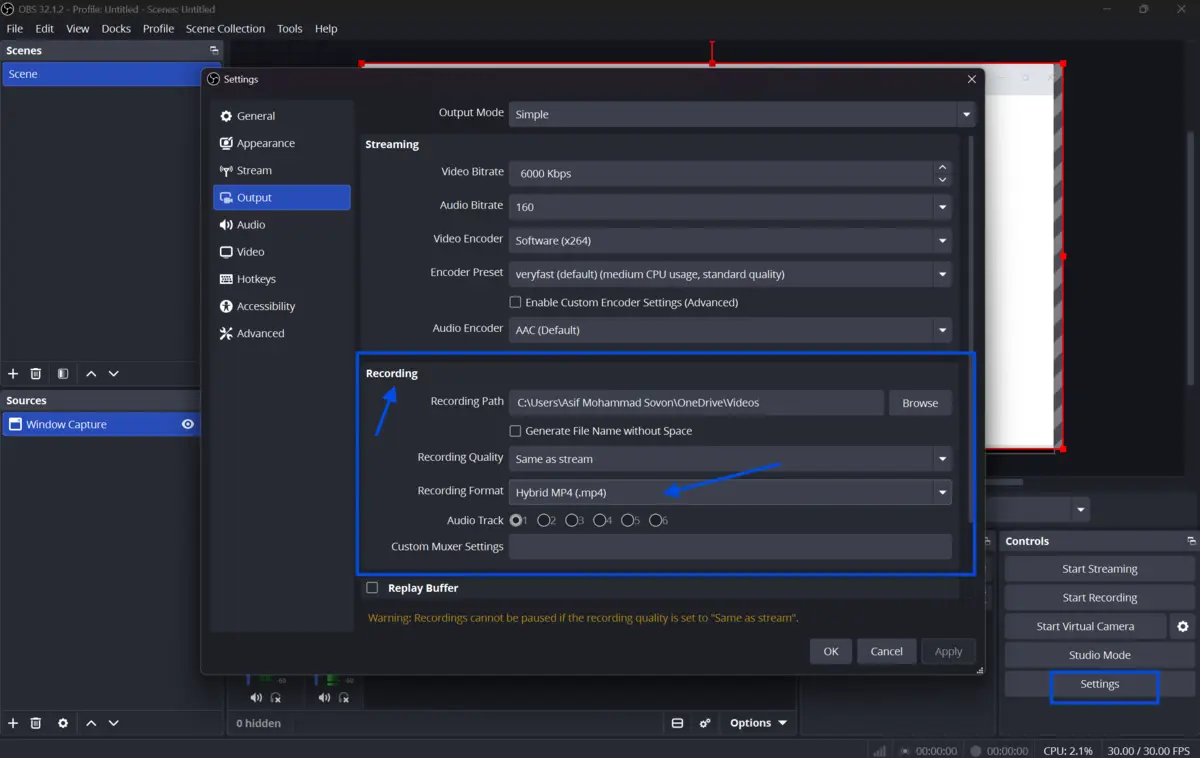
Set your output folder and file format. Choose MP4 for video or MP3 if you only need audio. Pick a folder you can find easily after the meeting ends.
-
Join your Zoom meeting as you normally would. Do not alert other participants that you are recording unless your local laws or company policies require disclosure. Check your regional recording consent laws before proceeding.
-
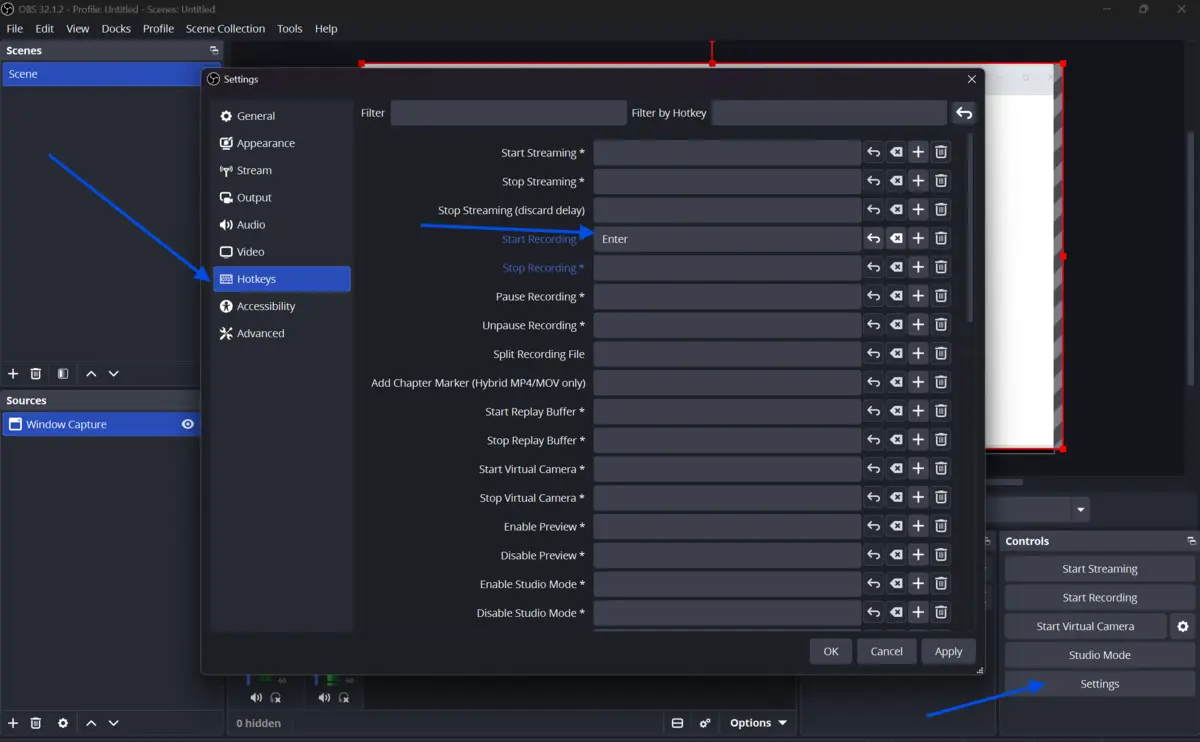
Start the screen recording using the software's hotkey or record button. Most tools use F9 or a custom shortcut. Confirm the recording indicator is active before the meeting content begins.
-
Stay attentive during the meeting. Avoid switching windows unnecessarily, as some recorders may pause or lose focus if the target window is minimized.
-
When the meeting ends, stop the recording using the same hotkey or stop button. Do not close the software immediately.
-
Wait for the file to process and save. Depending on meeting length and your system speed, this may take a few seconds to a couple of minutes.
-
Locate your saved file in the output folder. Play it back to confirm the audio and video captured correctly. Rename the file with the meeting date and topic for easy future reference.
Quick Tips
-
Keep your screen recorder open in the background as a habit before joining any meeting. You never know when you will need footage.
-
Use hotkeys to start and stop recording without clicking through menus. This keeps your actions unnoticeable during live calls.
-
If your system slows down during recording, lower the frame rate in settings. Zoom meetings do not require 60 fps; 30 fps is more than sufficient.
-
Record a short test before an important meeting. Replay it to confirm audio levels and video quality are working as expected.
Common Mistakes to Avoid
-
Many users start recording only to discover that no audio was captured. Always verify that system audio is enabled in your recorder settings before the meeting begins.
-
Some screen recorders only capture the active or visible window. Minimizing Zoom during recording can result in a blank or frozen frame. Keep the Zoom window visible throughout.
-
Leaving the recorder running after the meeting ends wastes storage and creates large, unnecessary files. Set a reminder or use automatic stop features if available.
-
Recording a conversation without the other party's knowledge may violate local laws in some regions. Research the one-party or two-party consent rules in your area before recording.
Final Verdict
Recording a Zoom meeting as a participant is precise with the right screen recording tool. You do not need host permission, nor do you need to interrupt the meeting to do it.
If you need a clean, reliable, and easy-to-use solution, download OBS Studio from our site today. It works right out of the box, captures audio from all sources, and saves your recordings in high quality without a watermark. Try it on your next call and see the difference for yourself.
FAQs
Can a Zoom host detect if a participant is recording?
Zoom does not notify the host when a participant uses third-party screen recording software. Zoom's detection system only applies to its own built-in recording feature. Third-party tools operate at the system level and are invisible to Zoom.
Is it legal to record a Zoom meeting without permission?
The answer depends on your location. In the United States, federal law allows one-party consent, meaning you can record a call you are part of. However, several states, such as California, require all parties to consent. Always check local laws before recording any conversation.
What is the best screen recorder for Zoom meetings?
iTop Screen Recorder, OBS Studio, and Camtasia are among the most popular choices. iTop is beginner-friendly and free for basic use. OBS is powerful and open-source. Camtasia suits professionals who need advanced editing.
Will recording a Zoom meeting affect my system performance?
Screen recording does use CPU and RAM resources. On most modern computers, the impact is minimal. If you experience slowdowns, reduce the recording resolution or frame rate in your software settings.
Can I record audio only from a Zoom meeting?
Yes. Most screen recorders include an audio-only mode. You can capture system audio or microphone input and export the file as an MP3 or WAV. This is useful for transcription or audio review without needing the full video file.
Comments
Let us know about your thoughts
Explore more articles related to Zoom Meetings
Here you will find all the latest tips and tricks about Zoom Meetings. Also you will get many solution of problems which you may face while using this app.

Published at: Apr 25, 2026
How to Use Zoom on a Low-End PC: Best Settings for Lag-Free Calls
Your meeting starts in two minutes. You open Zoom. The video freezes. The audio cuts out....


Meeting made efficient, collaboration made easy
Host virtual meetings like a pro with Zoom. With high-quality video and audio, breakout rooms, screen sharing, and cross-platform support, Zoom keeps work, learning, and personal calls smooth, interactive, and productive for everyone.